
Finding a Printer with an IP Address
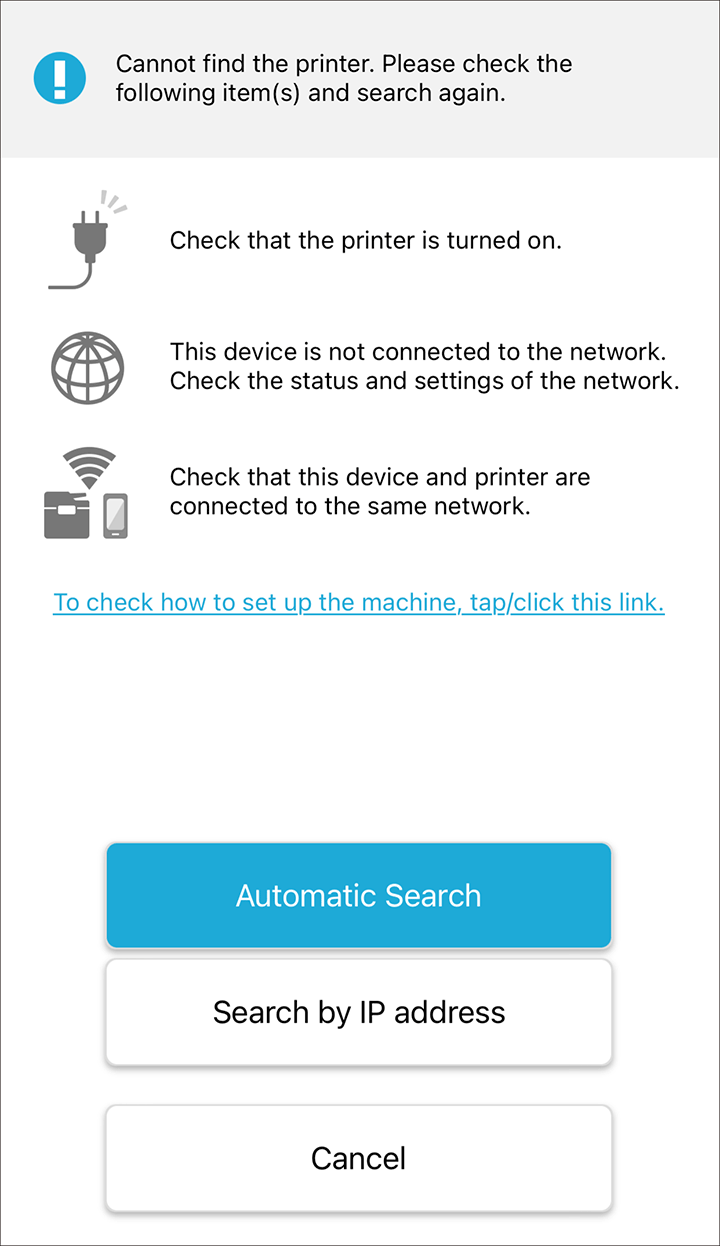
Tap [Search by IP address] on the search result screen.
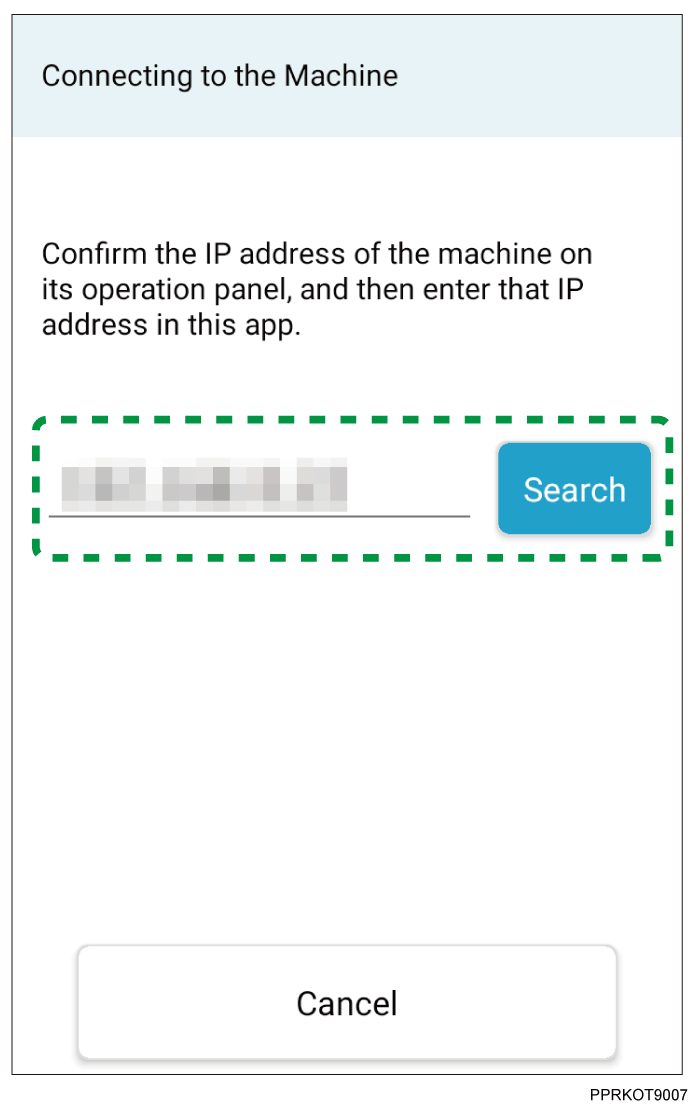
The IP address input screen appears.Enter the IP address of the printer, and tap [Search].
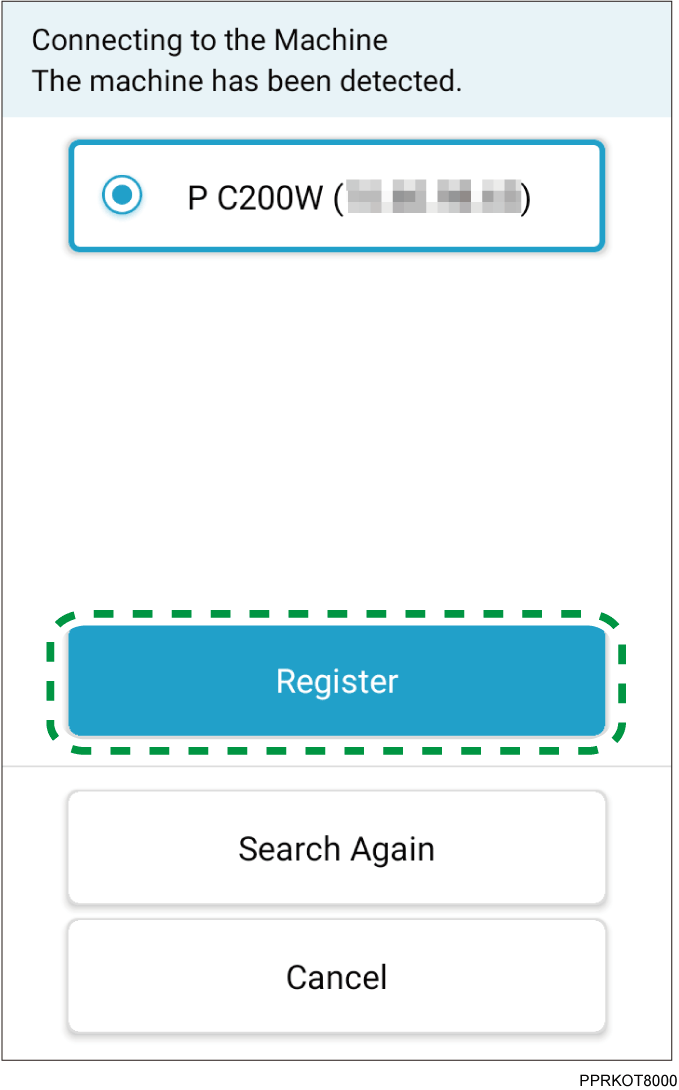
If the printer is found, the printer is displayed on the screen.
Specify an IP address in the IPv4 or IPv6 format.
Tap [Register].
If the connection with the printer is established, the connection completion message appears.Tap [OK].
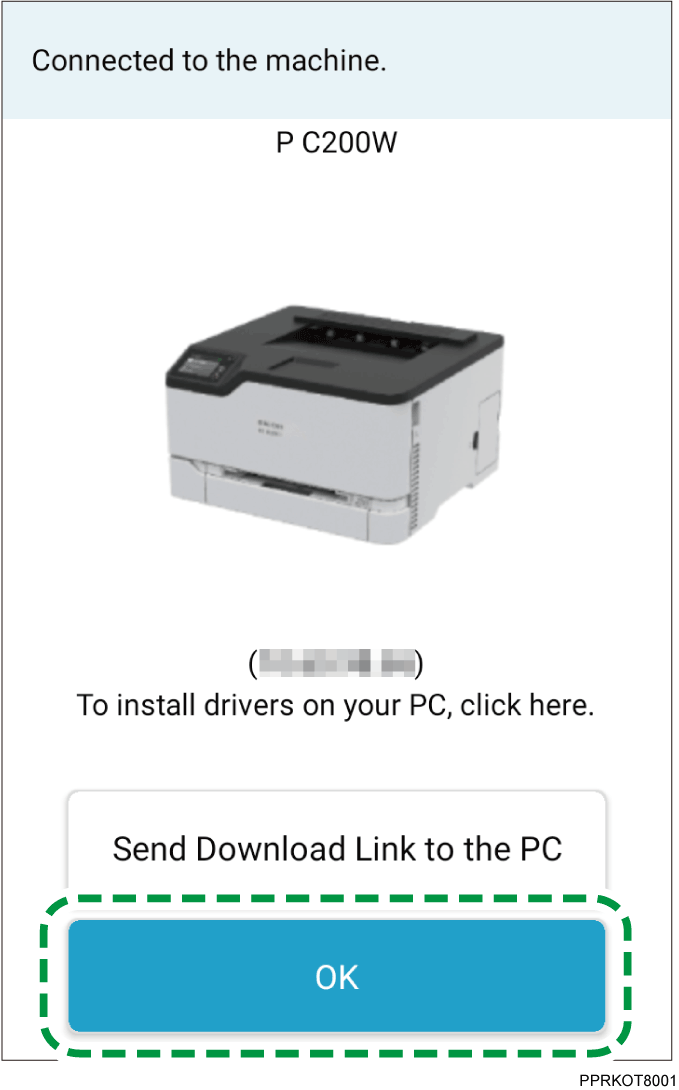
The top screen appears.If you use the printer with a PC (Windows/Mac), tap [Send Download Link to the PC] and follow the instructions on the screen to install the printer driver to your PC.