
Finding a Printer by the Automatic Search
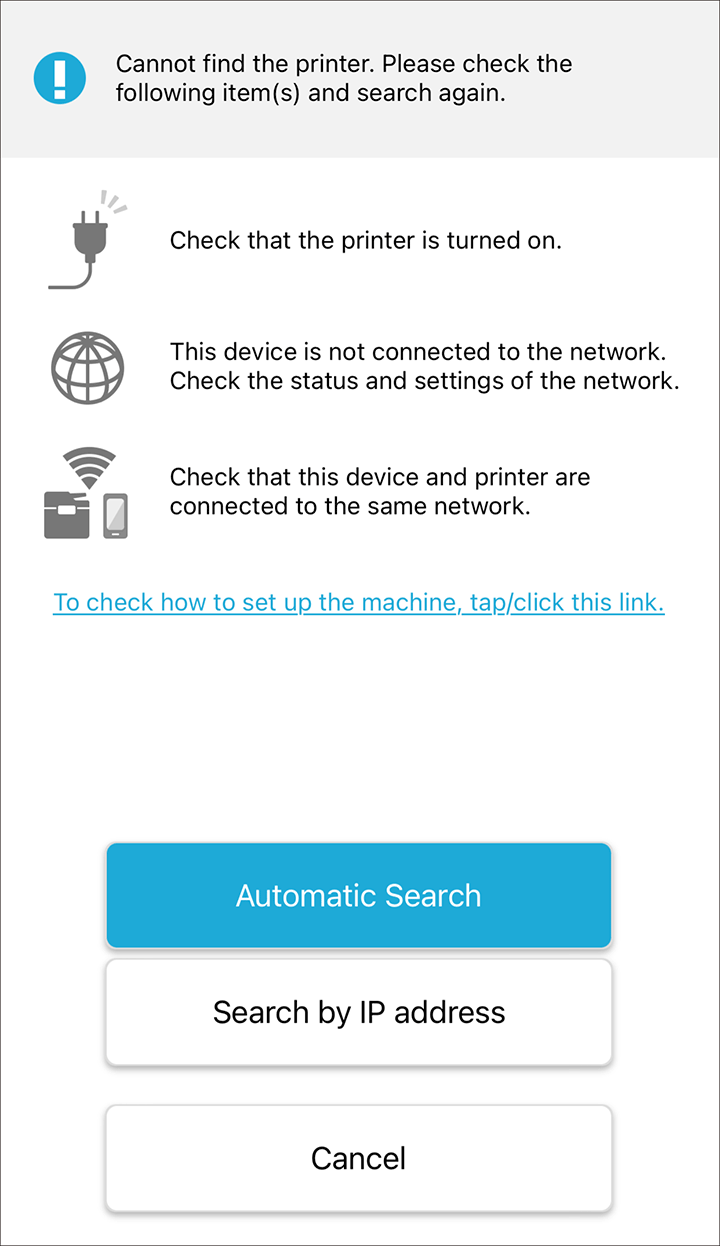
Tap [Automatic Search] on the search result screen.
The printer search starts.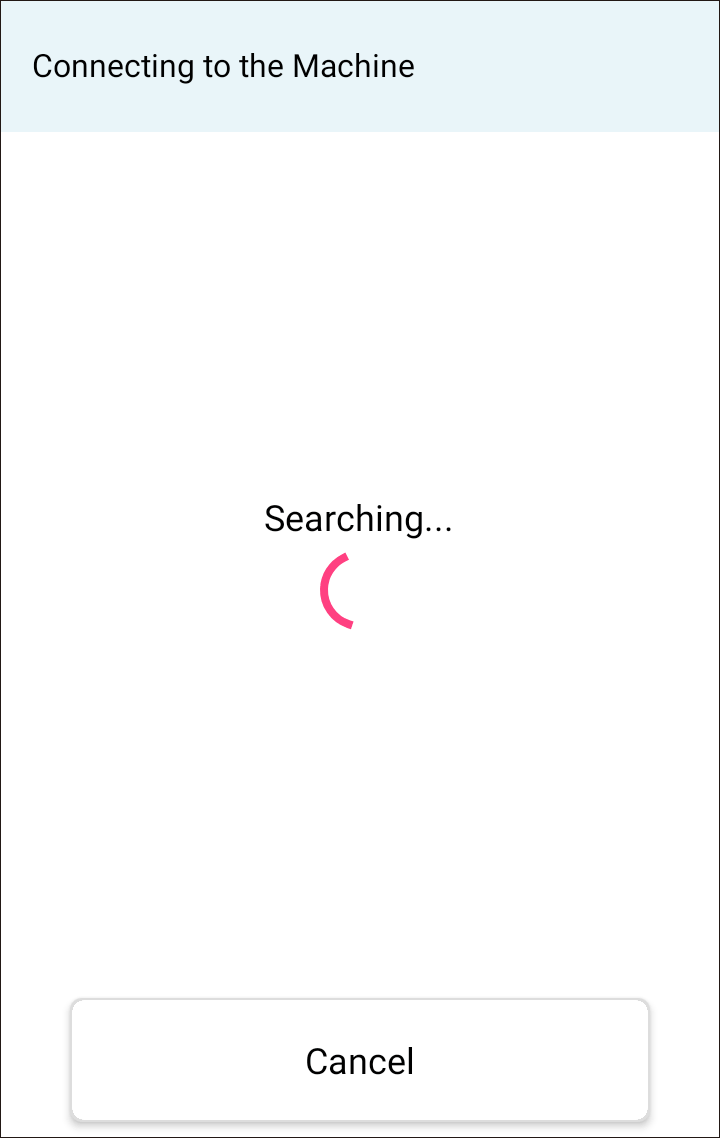
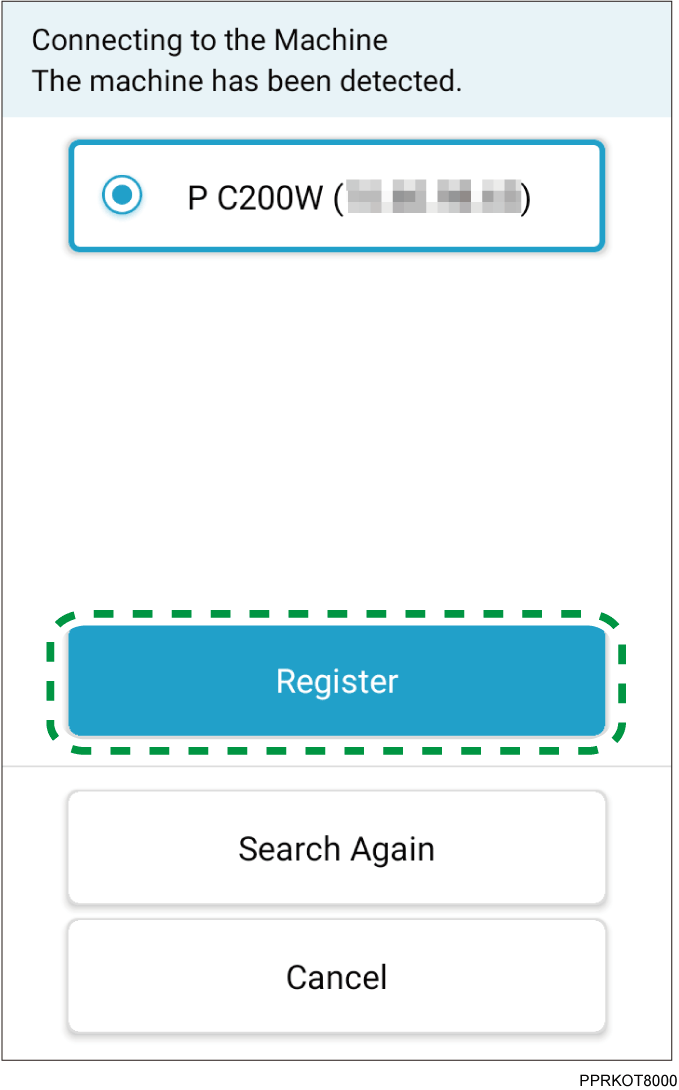
If available printers are found, the printers are displayed on the screen.
If the printer you want to use is not found, check the printer’s power and settings, and tap [Search Again] to find the printer again.
If the printer is not found by the automatic search, you can find the printer by entering the IP address. For details, see Finding a Printer with an IP Address.
Tap the printer you want to use and tap [Register].
If the connection with the printer is established, the connection completion message appears.Tap [OK].
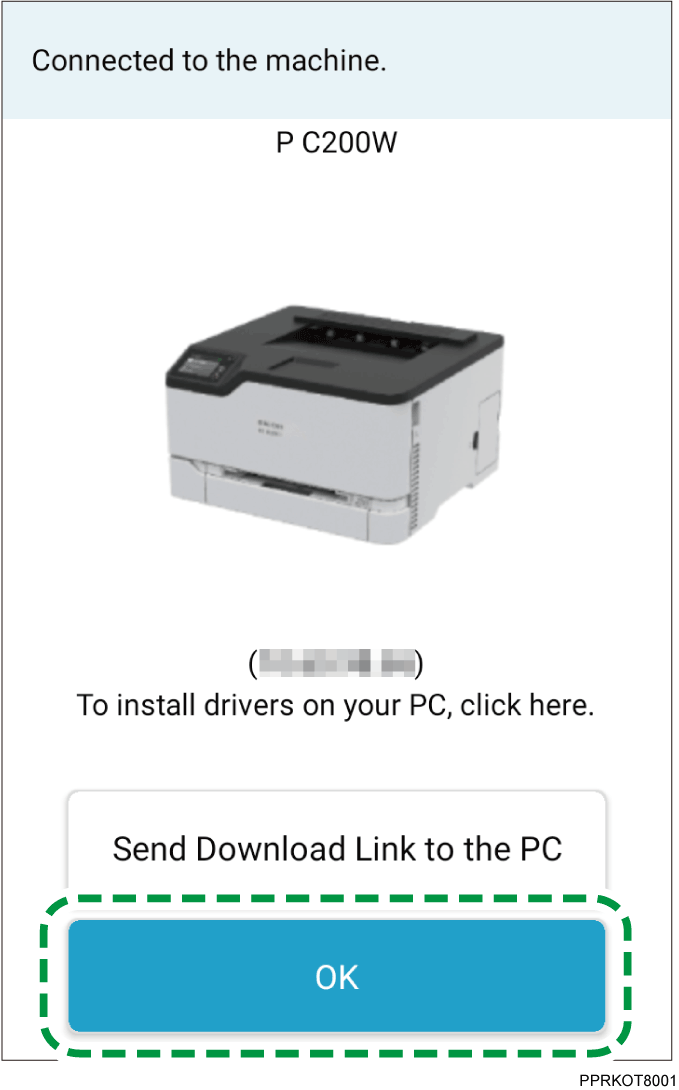
The top screen appears.If you use the printer with a PC (Windows/Mac), tap [Send Download Link to the PC] and follow the instructions on the screen to install the printer driver to your PC.