


 Previous
You can easily access a projector from DocsConnect by registering information about a projector in a connecting code and putting the connecting code on the projector in advance. Administrator privileges are required to create connecting codes.
 Log in to the machine as an administrator from a web browser on a computer.
 Click [Show Setting Screen].
 Click [Generate Connecting Code] in "Others" under "Setting Menu".
 Select "Projector" from the drop-down list in "Output device:".
 Select the method to specify a projector in "Method to specify:".
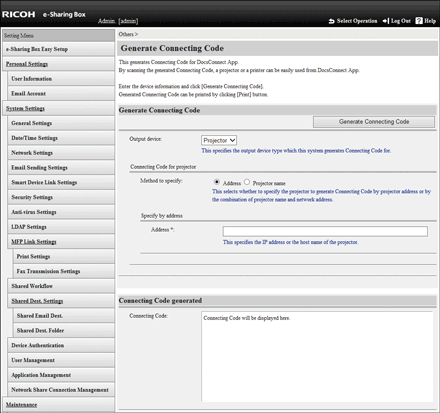
 To specify a projector using an address, enter the host name or IP address of the projector.
 To specify a projector using a projector name, enter the projector name and the address of the network the projector is connected to.
 Click [Generate Connecting Code].
 Click [OK].
The created connecting code is displayed on the bottom of the screen.
 Click [Print].
The print dialog box is displayed.
 Select a printer to print the connecting code, and then click [Print].

For details to access the machine using a web browser from a computer, see Accessing from a Computer.
You cannot omit the domain name of the host name when using an Android smart device.


