


 Previous
 Log in to the machine.
 Click [Show Setting Screen].
 Click [Set Destination Folder].
 Click [Select Destination Folder].
 Enter the name of a destination folder to register in "Specify destination folder name:".
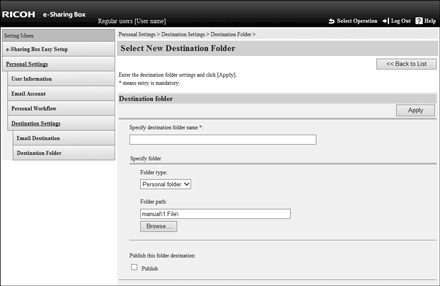
 Select a folder type in "Folder type:".
 Enter the path of a destination folder in "Folder path:".
Also, you can directly select folders by clicking [Browse].
 Click [Apply].
 Click [OK].
The destination folder is registered.
 Click [To Email Destination Settings].

If there is not a folder specified in "Folder path:", the folder is created automatically when a workflow starts.
If you check the "Publish this folder destination:" check box, other users can select this folder from their destination folder list.
To delete folder destinations, select folder destinations on the [Destination Folder] screen, and then click [Delete Selected Folder].
To edit folder destinations, click [Edit] for the destination folder on the [Destination Folder] screen.


