


 Previous
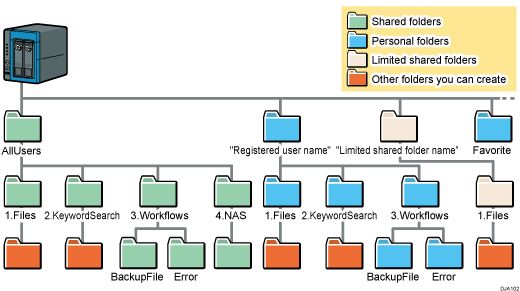
"AllUsers" folder, personal folders, limited shared folders, and a favorite folder are under the root directory of RICOH e-Sharing Box.
The "AllUsers" folder and personal folders have the following subfolders.
AllUsers folder
1.Files folder
2.KeywordSearch folder
3.Workflows folder
4.NAS folder*1
*1 This folder appears only when you access this machine using a smart device or an MFP.
Personal Folder
1.Files folder
2.KeywordSearch folder
3.Workflows folder
Folder name |
Description |
|---|---|
AllUsers |
This is a shared folder. All users registered to the machine can access these folders. |
"Registered user name" |
This is a personal folder. When a user is registered, a folder named with registered user's name is automatically created. Only the registered user can access this folder. |
"Limited shared folder name" |
This is a limited shared folder that only authorized users can access. |
1.Files |
These folders are created under the "AllUsers" folder, a personal folder, and a limited shared folder. You can store any files and create subfolders in these folders. If you store files in the "1.Files" folder under the "AllUsers" folder, all users can access the files. |
2.KeywordSearch |
These folders are created under the "AllUsers" folder and personal folders. To search for and sort files, create subfolders under this folder. The names of the subfolders are used as keywords to search for files. If files stored in the "1.Files" folder contain keywords, the machine creates links to those files and stores them in corresponding subfolders. You cannot store files in these folders. |
3.Workflows |
These folders are created under the "AllUsers" folder and personal folders. Files to be converted by workflows are stored here. If you use a shared workflow, store the files in the "3.Workflows" folder under the "AllUsers" folder. If you use a personal workflow, store the files in this folder under the personal folder. Do not create subfolders under the "3.Workflows" folder. |
4.NAS |
These folders appear under the "AllUsers" folder when you access the machine using a smart device or an MFP. You can access external storages and shared folders on a network via the machine. |
9.Trash |
This folder appears when you access the machine using a smart device. If you delete files on DocsConnect, the deleted files are moved to this folder. Deleted files in this folder are deleted automatically after a certain period of time. |
Favorite |
Files added to Favorite are stored in this folder. This folder is displayed when you enable the Favorite function in "System Settings" and access the machine using DocsConnect. Each user has his/her own Favorite folder, and only the login user can access his or her "Favorite" folder. |

Files added to Favorite are stored in the "Favorite" folder in your smart device. To prevent information leakage by losing your smart device, we recommend that you protect your smart device using passwords if you use the Favorite function.
You can configure the machine to automatically delete all the files added to Favorite after a certain period of time since you opened the "Favorite" folder or added files to Favorite.


