
Selecting the Connection Method
You can select the method with which to connect RICOH Smart Device Connector and the device. This section explains the procedure to print with each connection method.

Enable Wi-Fi® settings on your smart device.
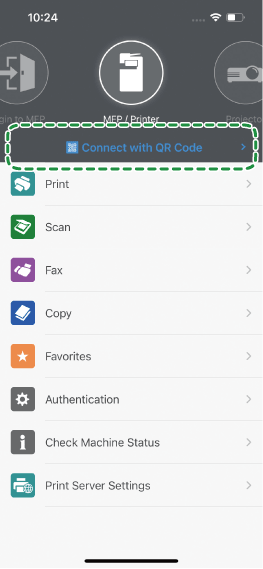
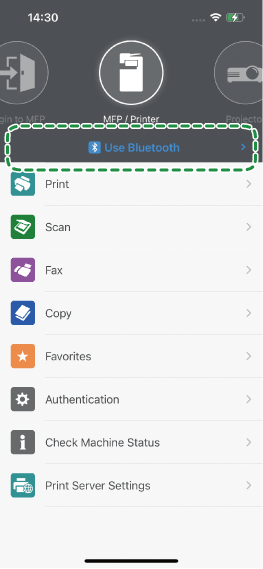
Horizontally swipe the RICOH Smart Device Connector menu and tap the area enclosed in the green frame.
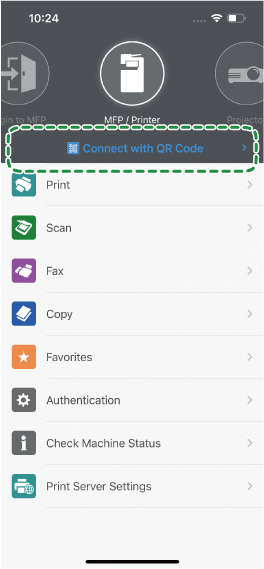
Select the connection method.
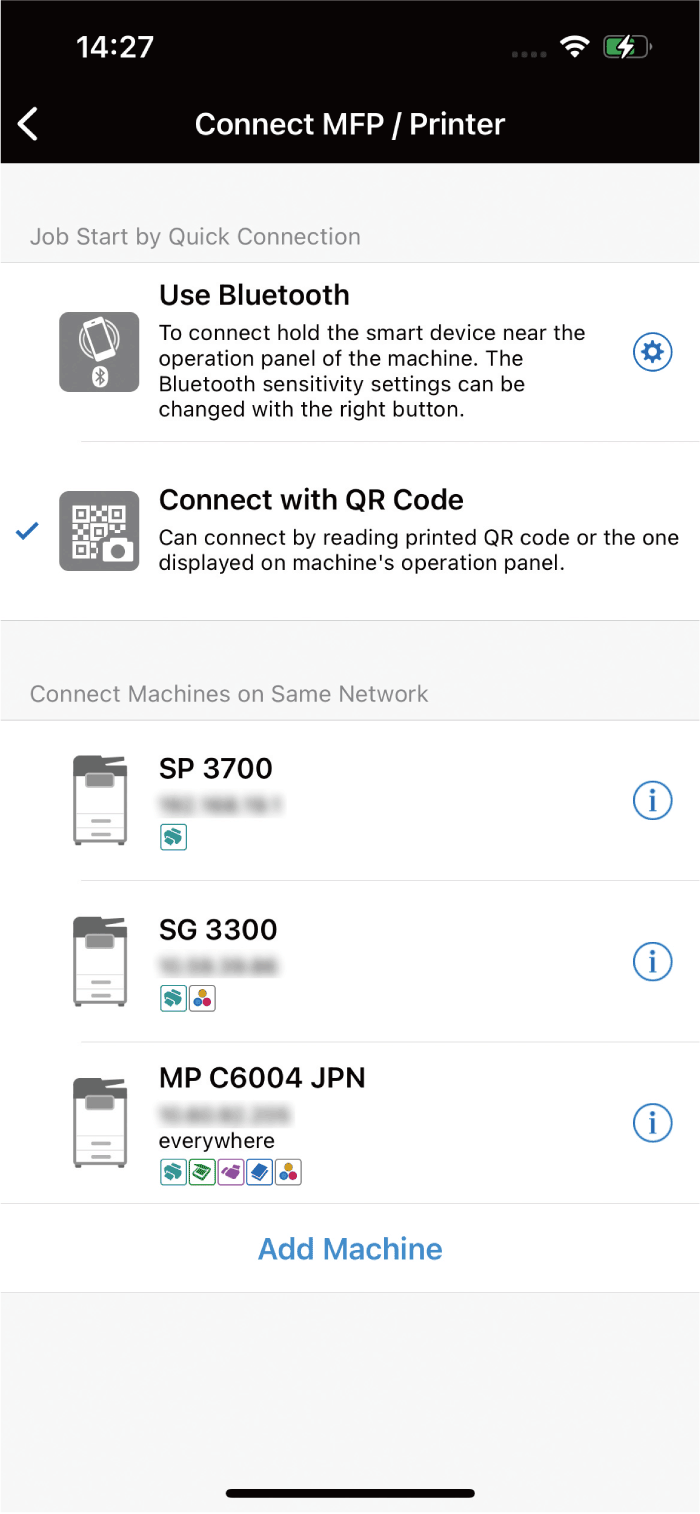
The following connection methods are available.QR code
Bluetooth
If any device has been registered, its name appears as a registered device.
For registering a device in advance, see Registering Devices.
Check that [Connect with QR Code] appears.
Select the data to print, and then specify the number of copies and other settings.
Tap [Read QR Code].
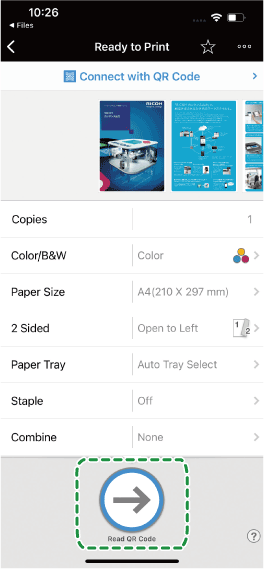
Tap [Tap for Next].
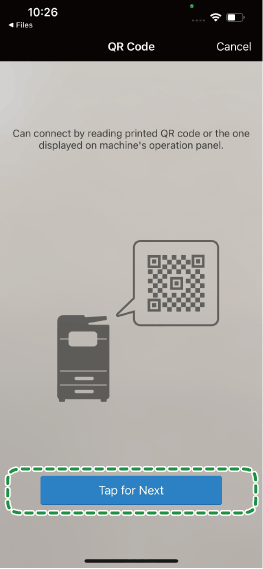
can the QR code of the printing device with the smart device.
If the scanning is successful, [Connecting...] appears and printing starts.
If the instructions to install the profile appear, tap [OK].
When printing with your selected printing device for the first time, install the profile.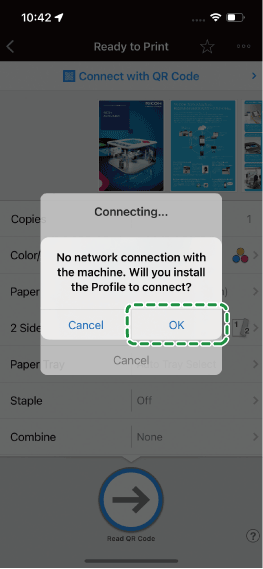
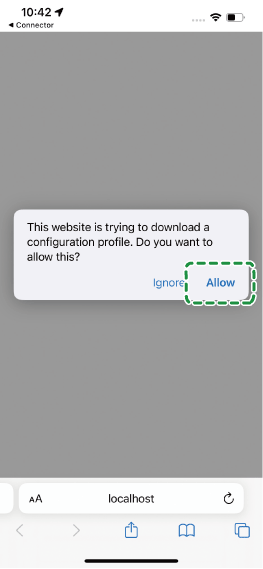
Tap [Allow].
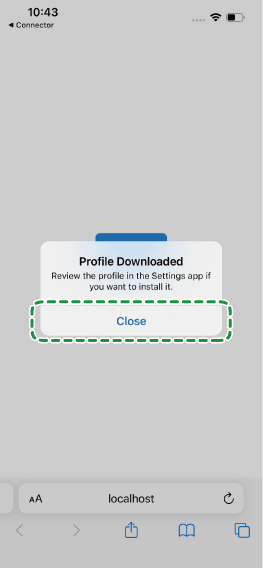
If the message notifying that the profile downloading has completed appears, tap [Close].
Tap [Settings] on the smart device.
Tap the downloaded profile.
If the downloaded profile does not appear, tap the downloaded profile in [General] [VPN & Device Management].
Tap [Install].
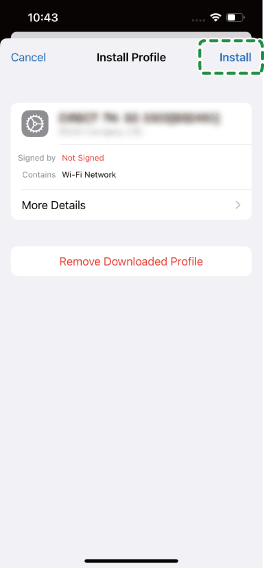
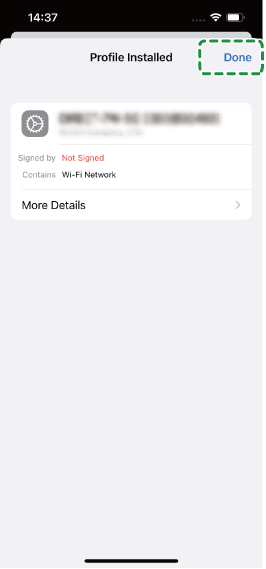
Tap [Done].
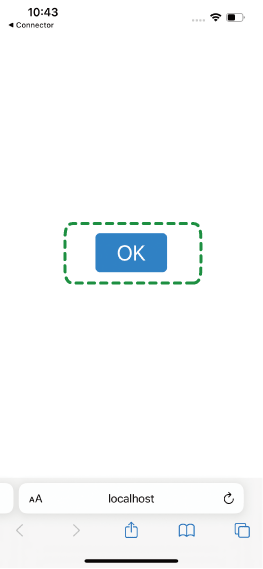
Tap [OK].
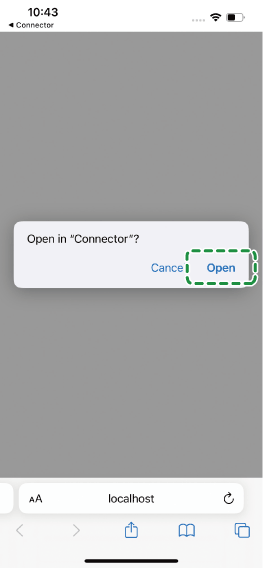
Tap [Open].
Check that [Use Bluetooth] appears.
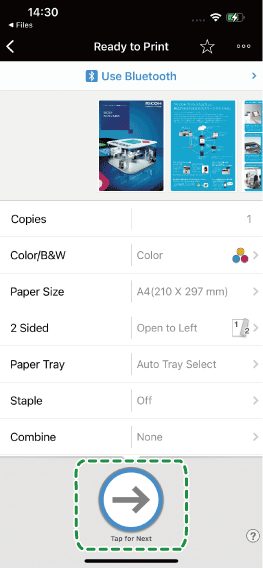
Select the data to print, and then specify the number of copies and other settings.
Tap [Tap for Next].
Touch the printing device with the smart device.
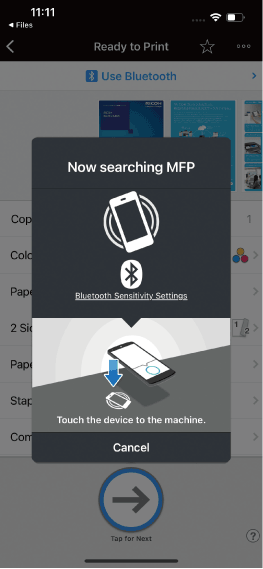
Touch the Bluetooth label affixed on the printing device.The message [Connecting...] appears and printing starts.
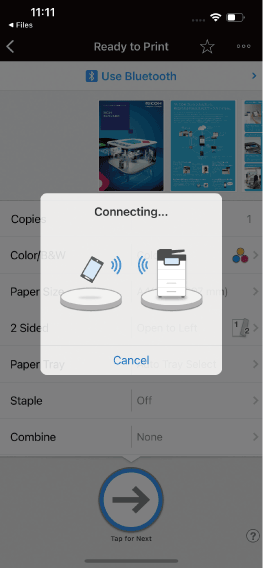
It may take a while for the message [Connecting...] to appear.
If the instructions to install the profile appear, tap [OK].
When printing with your selected printing device for the first time, install the profile.Tap [Allow].
If the message notifying that the profile downloading has completed appears, tap [Close].
Tap [Settings] on the smart device.
Tap the downloaded profile.
If the downloaded profile does not appear, tap the downloaded profile in [General] [VPN & Device Management].
Tap [Install].
Tap [Done].
Tap [OK].
Tap [Open].
When registering and MFP/Printer, connect the machine and smart device to the same network before performing the following procedure.
Check that the printing device appears.
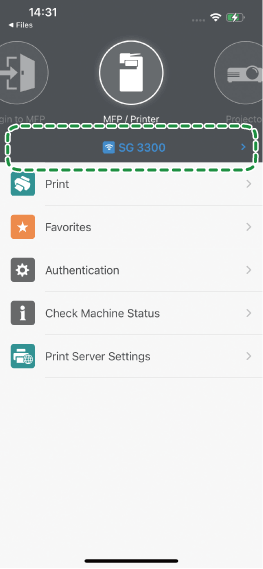
Select the data to print, and then specify the number of copies and other settings.
Tap [Start].
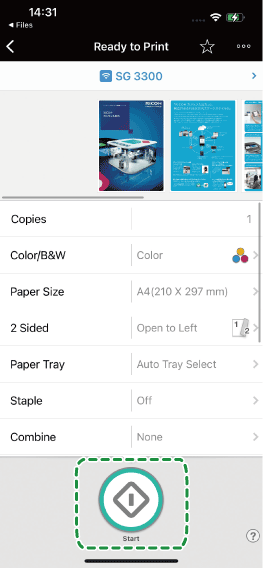
Printing starts.
If the instructions to install the profile appear, tap [OK].
When printing with your selected printing device for the first time, install the profile.Tap [Allow].
If the message notifying that the profile downloading has completed appears, tap [Close].
Tap [Settings] on the smart device.
Tap the downloaded profile.
If the downloaded profile does not appear, tap the downloaded profile in [General] [VPN & Device Management].
Tap [Install].
Tap [Done].
Tap [OK].
Tap [Open].