Printing
You can use RICOH Print Support Application to print a document in an application, or a web page from a web browser.
-
Start an application or browser, and open the page or file you want to print on your computer that is running under Windows.
-
Click [File]
 [Print].
 -
Select a registered printer, and then click [Printer Properties] or [Detailed Settings].
To print from a browser, click [Print using system dialog], select a registered printer, and then click [Detailed Settings].
-
The actual printing procedure or menu name may differ depending on the application or browser.
-
-
Configure the print settings as necessary, and click [OK].
When the print settings do not appear, specify the settings as follows:-
Enable the AirPrint function in Web Image Monitor.
-
Specify the function as a function that can use the printer in Restrict Application Functions of Web Image Monitor.
Printing starts.
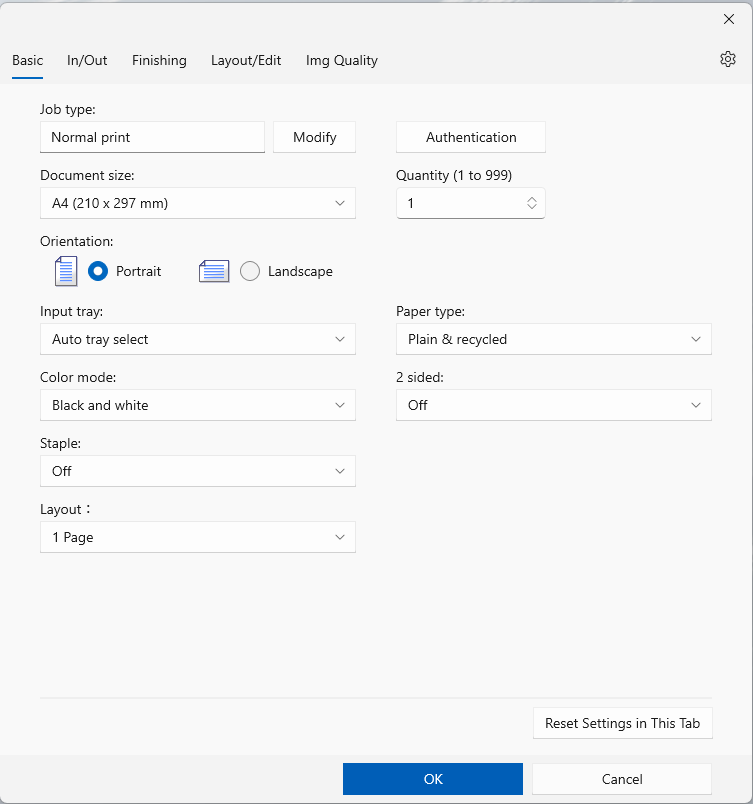
Item
Description
 (Settings)
Specify whether to enable/disable user authentication. Also specify settings such as the driver encryption key.
You can also check the application version.Basic
Specify settings such as Job type, authentication information, Document size, Orientation, and Quantity.
Domain Name can also be specified in authentication information if used in an environment that supports user authentication integration.
In/Out
Specify settings such as Input tray, Paper type, and Output tray.
Finishing
Specify settings such as Collate, Staple, Punch, and Fold.
Layout/Edit
Specify settings such as Reduce/enlarge, 2 sided, and Edge To Edge Print.
Img Quality
Specify settings such as Resolution and Toner Saving.
-
It may not match the setting of the option installed on the target printer or MFP.
-