


 Previous
 Launch your web browser.
 Enter "http://(IP address or host name of the machine)/home/" in the address bar.
 Press the [Enter] key.
The login screen appears.
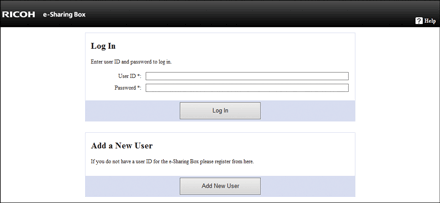
 Enter your user ID and password, and then click [Log In].
The top page appears.
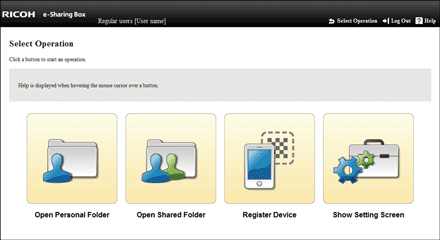
 Click [Open Personal Folder] to open a personal folder. Click [Open Shared Folder] to open the "AllUsers" folder.
[Open Personal Folder] and [Open Shared Folder] appear when you log in to the machine as a general user using Internet Explorer.

To log out of the machine, click [Log Out], and then click [OK] on the confirmation screen.
You can drag and drop files into the personal folder, the "AllUsers" folder, and a limited shared folder.
If no operation has been performed for a certain period of time, you are automatically logged out of the machine.
You can also access this machine directly using Explorer by entering the machine's IP address or host name in the address bar.
Access a limited shared folder using Explorer.
Access the shared folder or personal folders from Explorer when using a web browser other than Internet Explorer.
If the "Auto. detection:" check box in "Security Settings" under "System Settings" is selected, and if the Windows network search function is enabled, the icon for RICOH e-Sharing Box appears in "My Network" or "Network". You can easily access this machine from "My Network" or "Network". This function can be enabled when a computer and the machine are connected to the same sub-network. However, if you access the machine using Windows Server 2012/2012 R2, the icon for RICOH e-Sharing Box may not appear. If this is the case, enable "SSDP Discovery" and "UPnP Device Host" in Windows services settings. For details, see the Microsoft website.


